Time Tracking in Microsoft Teams: How to Get Started
Why Time Tracking in Microsoft Teams?
Most companies already use Microsoft Teams as their central communication and collaboration platform. Emails, meetings, chat, files — everything runs through Teams. So why not integrate time tracking where work is already happening?
The advantage is obvious: Employees don't need to open an additional app, log into a separate system, or learn a new interface. Time tracking becomes part of the daily workflow rather than an additional administrative task.
Step 1: Install timeghost Time Tracking
Installation takes less than two minutes:
- Open the Microsoft Teams App Store (left sidebar, "Apps")
- Search for "timeghost"
- Click "Add"
The app is immediately available in your Teams environment. A Microsoft 365 administrator can also deploy the app centrally for the entire company, so all employees automatically see it in their sidebar.
Step 2: Set Up Your Workspace
On first launch, you create your workspace. Here you configure the basic settings:
- Working time model — Define regular working hours (e.g., 40-hour week, flexible hours)
- Break rules — Automatic break reminders according to legal requirements
- Projects and clients — Optional: Create projects to book time against
- Invite team members — Add colleagues via their Microsoft 365 accounts
Step 3: Record Your First Workday
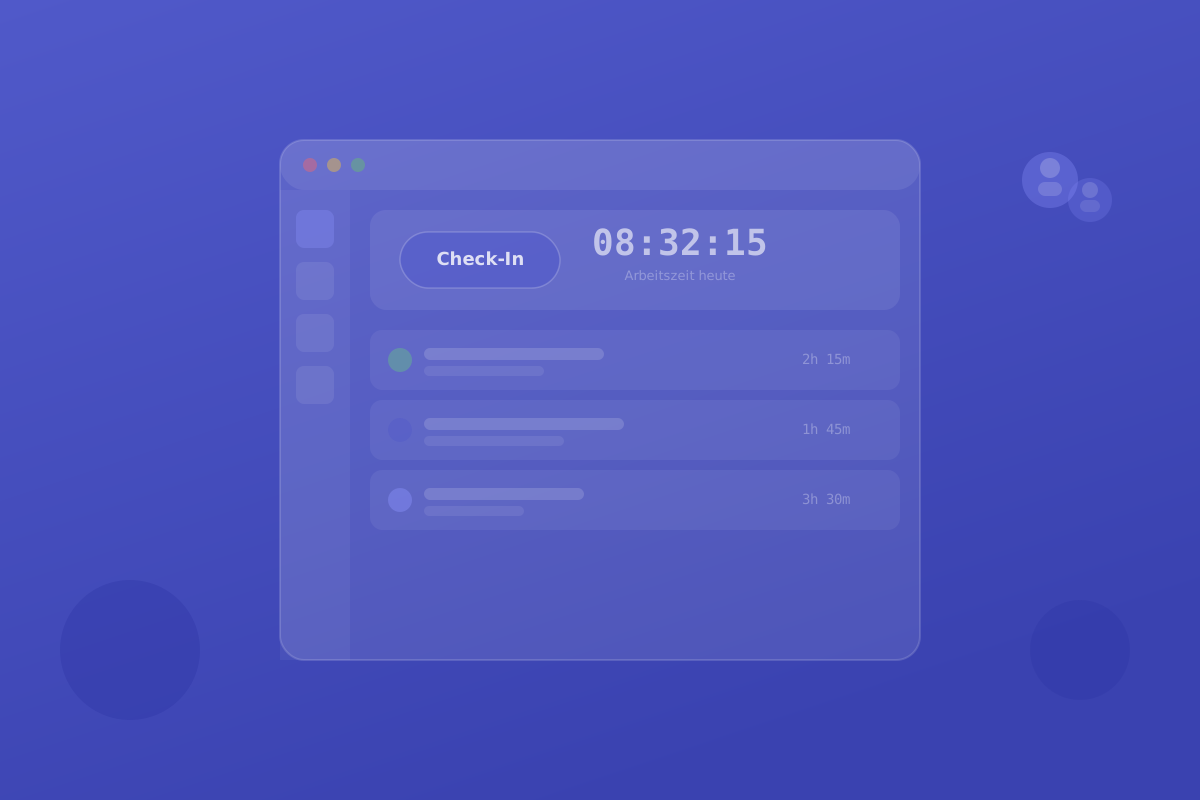
Daily time recording works as simply as possible:
- Check-in: Click "Check-In" once in the morning — the working time starts
- Break: Click "Break" when needed — break time is documented separately
- Check-out: Click "Check-Out" at the end of the day — the day is recorded
That's it. No forms, no dropdown menus, no retroactive entries at the end of the month.
Automatic Recording: Less Effort, More Accuracy
timeghost can also recognise working hours automatically. Through the integration with Microsoft 365, existing activities flow directly into time tracking:
- Teams calls and meetings are automatically recognised as working time
- Outlook appointments appear as time suggestions that can be confirmed with one click
- Planner tasks can be booked directly to projects
This significantly reduces manual effort and ensures that no working time goes unrecorded.
Project Time Tracking: Who Is Working on What?
Beyond basic working time recording, timeghost also offers project time tracking. This means you see not only how long someone worked but also what they worked on.
Projects can be freely created and linked to clients or internal cost centres. Employees simply select the relevant project when booking time — or automatic assignment handles it based on Teams channels or Planner boards.
Reports and Analytics
All recorded time is available in real time:
- Dashboard with daily, weekly, and monthly overview per employee
- Team view for managers with overtime and absence overview
- Export as CSV or Excel for payroll
- Project reports with target-actual comparison for project managers
Data Protection and Works Council
timeghost Time Tracking is designed to be GDPR-compliant and has already been approved by several works councils. All data is processed exclusively in the EU (Microsoft Azure, EU region). Access to time data is controlled by roles — employees only see their own data, managers only see their team's data.
Conclusion: Ready in Minutes
Time tracking in Microsoft Teams is not a complex rollout. With timeghost Time Tracking, the system is ready to use in just a few minutes, employees need no training, and legal requirements are met from day one. The best time to start is now.
Sources and further information
- timeghost Time Tracking on the Microsoft Teams App Store
- Work time tracking – features in detail
- Project time tracking – features in detail
- Install in Microsoft Teams
Related Articles
- Microsoft 365 Integration: Automatic Time Tracking with Outlook and Planner
- Project Time Tracking: 5 Best Practices for Teams
Content created with AI assistance and editorially reviewed. Current as of April 2026.
About the Author

timeghost Team
Editorial
Share article